Gresa Sahitaj


Connecting Zoom During Onboarding
When you first sign up for Kitra, you’ll be guided through onboarding.
During onboarding:
You’ll be prompted to connect your Zoom account.
Click Connect Zoom.
Review the permissions requested by Kitra.
Approve the connection to complete setup.
Once connected, Kitra is ready to work with your Zoom meetings.
How Kitra Works with Zoom
After Zoom is connected, Kitra can automatically process your meetings.
Depending on your preferences, Kitra may:
Capture meeting details
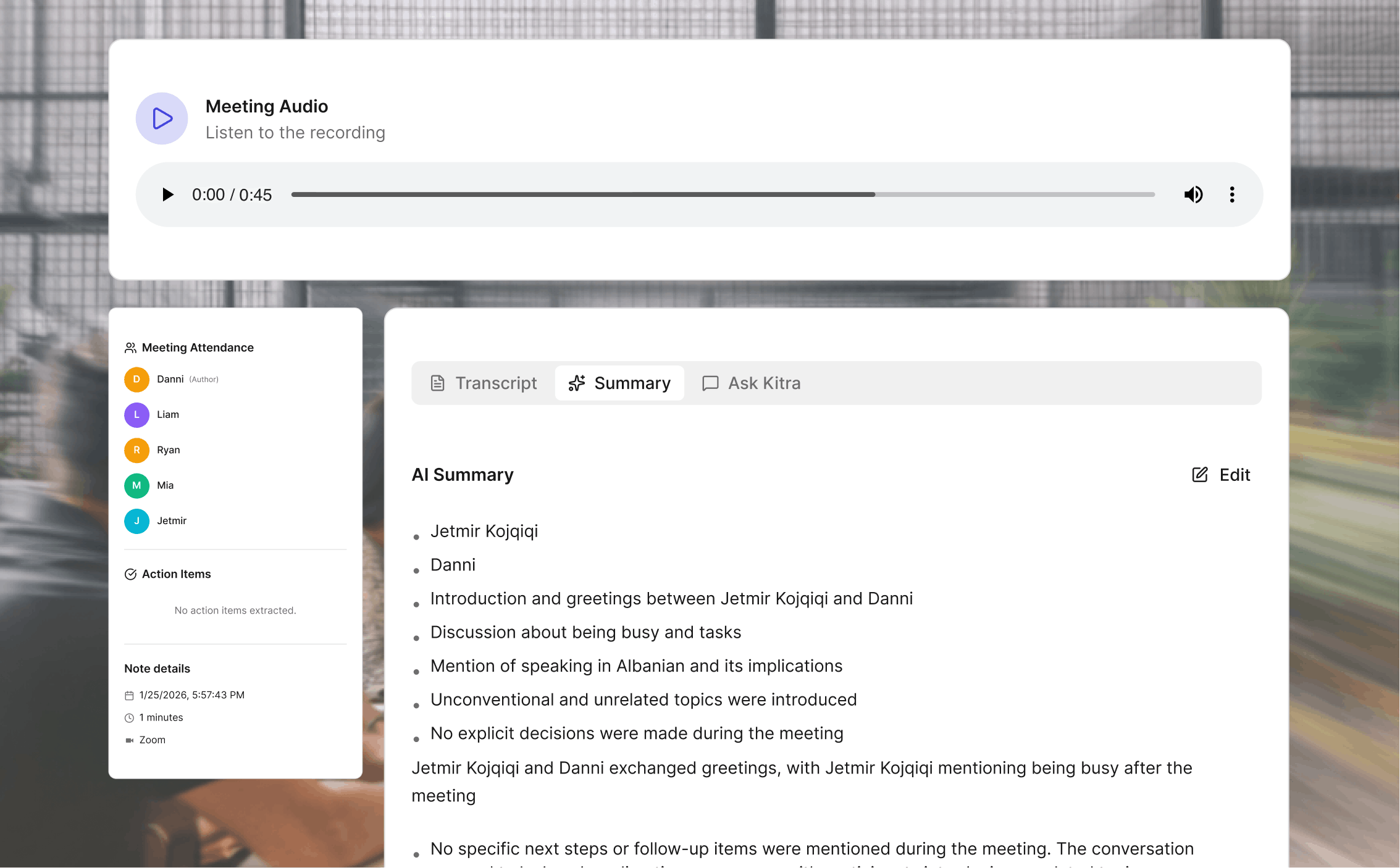
Generate transcripts and summaries
Highlight key points and action items
Organize everything inside your Kitra workspace
All processing happens after the meeting ends. Kitra does not interrupt live calls.
Managing the Zoom Integration
You can manage your Zoom connection at any time from your Kitra settings.
To manage or disconnect Zoom:
Open Settings in Kitra.
Go to the Apps tab.
Find Zoom in the connected apps list.
Choose to disconnect or update the integration.
Changes take effect immediately.
Disconnecting Zoom from Kitra
If you disconnect Zoom from the Settings → Apps tab:
Kitra will stop accessing new Zoom meetings
No new data will be captured
Existing data in Kitra remains available unless you delete it
You can reconnect Zoom at any time by going through the Apps settings again.
Data & Privacy
Kitra only accesses Zoom data required to provide its features.
Data is processed securely
Access is limited to your account
You stay in control of your integrations
You can remove access at any time
For more details, please review our Privacy Policy.
Need Help?
If you have questions or need support:
Check your Kitra dashboard
Contact our support team
We’re here to help you get the most out of Kitra.